
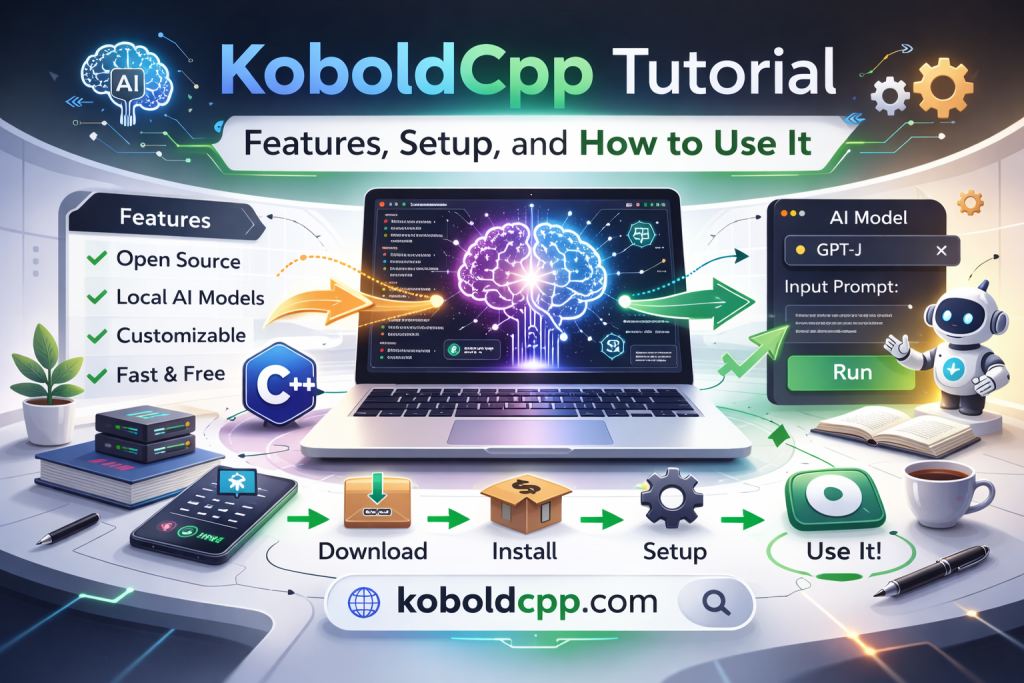
KoboldCpp is a lightweight application that allows users to run large language models locally on their own computers. It is widely used for AI storytelling, roleplay, coding assistance, research, and private text generation.
Unlike cloud-based AI platforms, KoboldCpp runs offline once configured, giving users complete control over their data and performance settings. This tutorial explains the main features of KoboldCpp, how to set it up properly, and how to use it effectively. Whether you are a beginner or exploring local AI tools for the first time, this guide will help you understand everything step by step.
Key Features of KoboldCpp
Local AI Model Execution
One of the main features of KoboldCpp is its ability to run large language models locally without requiring internet access. After downloading a compatible model, all processing happens on your own hardware. This ensures privacy and removes dependency on external servers. Local execution also allows users to experiment freely without usage limits imposed by cloud services.
Built-In Web Interface
KoboldCpp includes a simple web-based interface that opens in your browser after launching the application. This interface allows users to enter prompts, adjust settings, and view generated responses easily. There is no need for complex command-line operations for basic use. The web interface makes the tool accessible even to beginners.
Customizable Performance Settings
Users can control performance-related settings such as thread count, GPU layer usage, and context length. These settings allow the application to adapt to different hardware configurations. Adjusting these options helps balance speed and resource consumption. Proper configuration ensures stable performance even on mid-range systems.
Setting Up KoboldCpp
Downloading the Application
To begin, download KoboldCpp from the official GitHub repository to ensure you are using a safe and updated version. Choose the correct build for your operating system, such as Windows, Linux, or macOS. Avoid third-party websites to reduce security risks. Downloading the correct version ensures compatibility with your system.
Extracting and Launching the Program
If the download comes in ZIP format, extract the files into a dedicated folder on your computer. Inside the folder, you will find the main executable file. Running this file launches KoboldCpp without requiring a traditional installation process. Once started, it opens a local server interface accessible through your browser.
Downloading a Compatible Model
KoboldCpp requires a supported language model file, typically in GGUF format. You can download models from trusted repositories such as Hugging Face. Choose a model that fits your system’s RAM and GPU capacity. Selecting an appropriate model size ensures smoother performance and faster loading times.
Loading and Configuring a Model
Selecting the Model File
After launching KoboldCpp, use the interface to locate and select your downloaded model file. The application will begin loading the model into memory. Depending on model size and system performance, this process may take some time. Once loading completes, the model is ready to generate responses.
Adjusting Generation Parameters
KoboldCpp allows you to control output style through parameters like temperature, top-p sampling, and repetition penalty. Temperature influences creativity, while top-p controls randomness in word selection. Adjusting these settings helps tailor responses to your preferences. Beginners can start with default values before experimenting further.
Configuring Hardware Settings
For better performance, users can adjust thread usage and GPU layer settings. Systems with powerful GPUs can offload processing for faster responses. CPU-only systems can still operate effectively by optimizing thread allocation. Proper hardware configuration prevents crashes and improves stability.
How to Use KoboldCpp
Entering Prompts and Generating Text
Once the model is loaded, simply type your prompt into the input field and click generate. The AI processes your input and produces text output in real time. You can continue the conversation by adding follow-up prompts. This interactive format makes KoboldCpp suitable for storytelling, research, or brainstorming sessions.
Using It for Creative Writing
Many users rely on KoboldCpp for generating stories, character dialogues, or fantasy roleplay content. By providing detailed prompts, you can guide the AI toward specific narrative directions. Adjusting temperature settings increases creativity in storytelling tasks. This makes it a popular tool among writers and hobbyists.
Using It for Coding Assistance
Some compatible models are trained for programming support. You can request code examples, debugging help, or explanations of programming concepts. Since the system runs locally, sensitive project details remain private. This makes KoboldCpp useful for personal development and experimentation.
Advanced Features and Customization
Context Length Management
Context length determines how much conversation history the model remembers. Increasing context size allows longer discussions but consumes more memory. Balancing context length with system capability ensures smooth operation. Adjusting this setting helps optimize long-form interactions.
Saving and Loading Sessions
KoboldCpp allows users to save conversation sessions for later continuation. This is useful for ongoing projects or long storytelling sessions. Saving sessions prevents loss of progress between restarts. It also improves workflow consistency for regular users.
Integrating with Other Tools
Advanced users often integrate KoboldCpp with additional scripts or interfaces. It can be used alongside text editors or automation tools for research and experimentation. Because it runs locally, it is flexible and adaptable. This modular capability makes it suitable for technical users.
Troubleshooting Common Issues
Slow Performance
If the application runs slowly, consider using a smaller model or reducing context length. Adjusting thread count can also improve responsiveness. Monitoring system resource usage helps identify bottlenecks. Optimizing settings ensures smoother operation.
Model Fails to Load
If a model does not load, verify that it is in a supported format such as GGUF. Ensure the file path is correct,, and the download was not corrupted. Updating to the latest version of KoboldCpp may resolve compatibility issues. Basic checks usually fix loading problems.
Memory Errors
Large models require substantial RAM, and insufficient memory may cause crashes. Selecting a smaller model or increasing virtual memory can help. Proper hardware assessment before setup prevents repeated issues. Stable memory allocation ensures reliable operation.
Conclusion
KoboldCpp is a powerful and flexible local AI tool that enables users to run large language models privately and offline. With its built-in web interface, customizable settings, and straightforward setup process, it is accessible for beginners and advanced users alike. By understanding its features and configuration options, you can effectively use KoboldCpp for creative writing, coding assistance, research, and experimentation.